
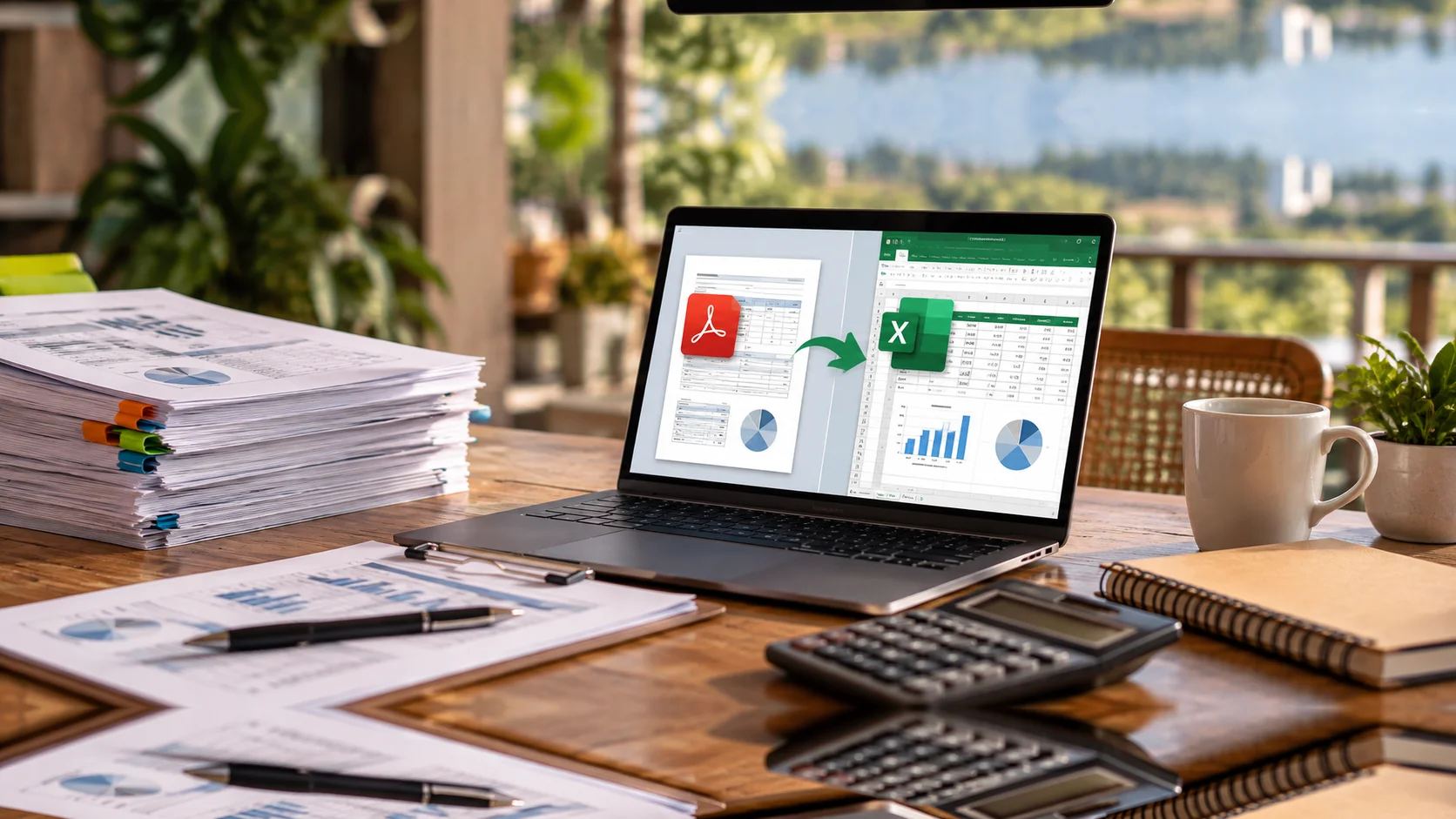
To convert PDF to Excel, first check whether the document contains selectable text or scanned images. Use a supported PDF import or export tool for readable tables, apply optical character recognition when needed, and check the resulting spreadsheet against the original document.
For businesses in the Philippines and worldwide, conversion is useful when bank statements, supplier invoices, inventory lists, or system reports arrive as PDFs. The challenge is getting complete, correctly structured records that can support calculations and reporting.
VeridaTech is a Philippines-based finance and data analytics business providing Excel and spreadsheet services to clients worldwide. This guide explains extraction methods, common errors, and practical checks before converted records enter your workflow.
Key Takeaways
- Ask for an original spreadsheet or CSV export before extracting a PDF.
- Scanned documents need text recognition before their contents can become usable records.
- Review dates, identifiers, amounts, and page boundaries after conversion.
- Compare totals and individual records; matching totals alone cannot establish accuracy.
- Agree on access, output structure, and validation responsibilities before processing confidential files.
What Does PDF to Excel Conversion Involve?
PDF to Excel conversion extracts information from a document into spreadsheet cells. A useful business output has consistent columns, correctly interpreted values, and traceable source references.
Decide what each row should represent before processing. An invoice summary needs one row per invoice, while purchasing analysis may require one row per invoice line. Combining both without distinguishing them can duplicate amounts.
Ask the document owner whether an original Excel or CSV export exists. That may avoid reconstruction, although the export still needs validation.
Which Method Should You Use?
Before you convert PDF to Excel, choose the extraction method according to the document’s contents and layout. Try selecting a few words and numbers in the PDF; selectable text is a useful initial check, although an existing text layer may itself contain recognition errors.
| PDF Type or Requirement | Practical Starting Method | Check Before Proceeding |
| Clear, selectable tables | Excel’s PDF import, where supported | Detected columns and complete page coverage |
| Scanned pages or photographed documents | OCR-capable software, followed by extraction | Recognised characters and row alignment |
| One-off workbook export | Adobe Acrobat’s Excel export | Worksheet structure and numeric settings |
| Recurring reports with consistent layouts | A tested Power Query workflow | Changes in headings, pages, or columns |
| Blurred, cropped, or incomplete records | Request a clearer source; manually verify exceptions | Whether missing information can be recovered |
Optical character recognition, or OCR, converts images of text into machine-readable text. Adobe documents OCR options for scanned PDFs, including recognition language. OCR output still needs checking before business use.
How Do You Convert PDF to Excel Using Power Query?
In a supported Excel installation, use the PDF connector to select detected tables and prepare the data before loading it. Check availability in your own version and platform rather than assuming every Excel application has the same connectors.
Microsoft’s documented import procedure is:
- Open Excel and select Data > Get Data > From File > From PDF.
- Select the PDF and open it.
- Review the tables shown in Navigator.
- Select the required tables.
- Choose Transform Data to prepare the records, or Load to import them directly.
For business records, review the transformation preview before loading. Check headers, empty rows, split descriptions, and data types. Keep source filenames and page references where practical.
Microsoft’s PDF connector supports options for page ranges and combining similar tables across consecutive pages. These options help manage extraction, but page transitions still deserve inspection.
How Do You Extract Tables With Adobe Acrobat?
Adobe Acrobat supports exporting PDFs to Microsoft Excel XLSX files. Its export settings include worksheet organisation, decimal and thousands separators, and text recognition language.
The documented desktop process is:
- Open the PDF in Acrobat.
- Select Convert, then Microsoft Excel and XLSX.
- Review the conversion settings, including text recognition when needed.
- Select Convert to XLSX, choose a destination, and save.
- Open the workbook and compare it with the PDF.
Decide whether separate worksheets by table, page, or document suit the task. A page-by-page export may need consolidation before analysis. Confirm that your Adobe product includes the required export features.
What Should You Check After Extraction?
After you convert PDF to Excel, check completeness, field interpretation, and agreement with source records before using the output. Keep the original PDF and raw extraction separate from the cleaned workbook.
Check Missing and Repeated Rows
Review the first and last records on every page. Watch for repeated headings, carried-forward balances, subtotals, and descriptions split across lines.
Do not remove records merely because their dates and amounts repeat. Two legitimate transactions can share both values. Compare reference numbers and source positions before deciding a row is duplicated.
Confirm Dates and Identifiers
Preserve invoice numbers, product codes, and account identifiers as text when their exact characters matter. Check that identifiers such as 001247 retain their leading zeros.
An entry such as 04/05/2026 is ambiguous without knowing the source’s date convention. Confirm the intended date before conversion. Power Query supports changing types using a specified locale, which helps interpret date and numeric text correctly.
Validate Amounts and Currencies
Check negative signs, decimal places, debit and credit columns, and currency labels. Do not replace unreadable amounts with zero or combine PHP, AUD, USD, and GBP into an unlabelled total.
Where the task includes currency conversion, agree on the rate source, rate date, and reporting currency separately. PDF extraction alone does not establish those reporting rules.
Compare Totals and Individual Entries
Use control totals alongside record-level checks. For a bank statement that reports opening balance, credits, debits, and closing balance, test whether the extracted figures follow the statement’s balance convention.
Hypothetical example: A statement shows PHP 100,000 opening balance, PHP 50,000 credits, and PHP 30,000 debits. The expected closing balance is PHP 120,000.
That agreement does not prove every entry is correct. A missing PHP 5,000 credit and a missing PHP 5,000 debit leave the closing balance unchanged. Compare transaction counts where available and check individual entries, particularly exceptions and material amounts.
If the records feed accounting work, distinguish extraction checks from bank reconciliation and bookkeeping support. Reconciliation also compares the bank statement with the business’s accounting records.
Can You Automate Recurring PDF Reports?
You can build repeatable extraction for suitable documents, but automation needs checks for layout changes and incomplete inputs. Test representative files before applying the process to a larger batch.
Microsoft recommends a multi-file connector, such as Folder or SharePoint Folder, when importing multiple PDFs through Power Query. Combining files still requires compatible extraction rules.
For a recurring workflow, agree on filenames, required pages, expected columns, and a process for failed files. Retest when a supplier or bank changes its document layout.
Once validated, structured records can support data analytics and reporting. Keep unresolved exceptions visible before using the data in dashboards or forecasts.
What Should You Prepare for a Conversion Project?
To convert PDF to Excel for a defined business task, prepare representative documents, an example output, and clear acceptance checks. These establish what the work includes and what must be verified.
Provide:
- PDFs covering different layouts and scan quality.
- Required fields and the meaning of each row.
- Reporting periods, currencies, and date conventions.
- Source totals or approved examples for comparison.
- The person who can resolve unclear records.
- Access, retention, and delivery requirements.
Agree on an approved transfer method for bank statements, payroll, and customer records. Review storage, access, and deletion arrangements before using an online converter.
Project timing depends on document volume, layout consistency, scan quality, missing pages, and validation requirements. Request an estimate after sample review rather than relying on a universal per-page completion promise.
How Can VeridaTech Help?
VeridaTech’s Excel and spreadsheet services include PDF and statement extraction, spreadsheet cleanup, and source checks. The business also provides spreadsheet automation and reporting support.
An agreed deliverable can include structured records, source references, validation results, and an exception list. Confirm these requirements during scoping so the workbook suits its intended use.
Frequently Asked Questions
Can I Convert PDF to Excel for Free?
Possibly, depending on software you already have and the document’s complexity. Check whether your Excel installation includes PDF import and whether any alternative tool restricts export or requires a subscription. Compare cleanup time and data handling arrangements as well as cost. A free output still needs validation before you use it for financial or operational decisions.
Can Scanned Bank Statements Become Editable Spreadsheets?
Yes, scanned statements can be processed with OCR and extraction software, subject to document quality. Blurred figures, cropped columns, and unclear signs may require manual verification or a better copy. Review opening and closing balances, credits, debits, and individual transactions. Keep unresolved entries marked rather than guessing what the original statement intended to show.
Why Does the Spreadsheet Look Different From the PDF?
The extraction process reconstructs rows and columns from the document’s layout. A spreadsheet designed for analysis may therefore look different from a printed report. Decide whether you need visual reproduction or a structured dataset. For a PDF table to spreadsheet workflow, prioritise complete records and consistent fields, while retaining references to the original pages.
Will the Original Excel Formulas Be Restored?
Treat extracted values as data, not recovered workbook logic. If you need the original formulas, request the source workbook from its owner. Calculations built after extraction should be documented and checked against the business rules. A matching displayed total does not establish that underlying formulas, links, or assumptions have been recreated correctly.
How Can I Extract Data From PDF Files With Different Layouts?
To convert PDF to Excel across different document layouts, group the files by layout and test each group separately. Different column orders, headings, and page structures may need different extraction rules. Then map the outputs into agreed fields, such as document date, reference, description, amount, and currency. Record which files required manual review so a successful batch run does not hide unresolved exceptions.
Need to convert PDF to Excel for reporting, bookkeeping preparation, or operational tracking? Discuss your source documents with VeridaTech. The Philippines-based business serves clients worldwide online, including Australia, the United States, and the United Kingdom. Onsite support in Bataan, Pampanga, Bulacan, and Metro Manila is subject to confirmed coverage.